Console
The console is your direct interface to communicate with Klipper. Send G-code commands, execute macros, and view responses in real-time. With features like auto-complete, a built-in command reference, and customizable output filters, the console helps you interact with your printer efficiently. Access it from the dashboard panel or the dedicated console page in the sidebar.
Send commands
Start typing your command in the console input field. To submit, press Enter or click the paper airplane icon.
Use the TAB key to auto-complete commands. If multiple options are available, a list will appear—click on a command to
select it, or continue typing and press TAB again to refine the suggestion.
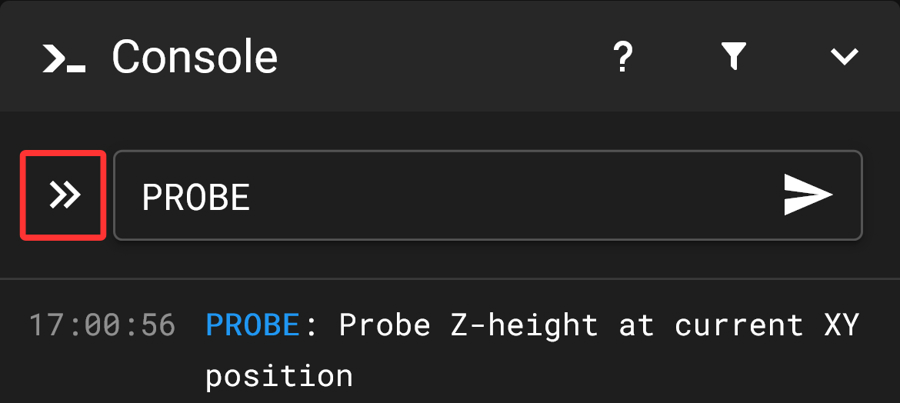
On touchscreen devices, a double-arrow icon appears next to the input field. Tap it to trigger auto-complete—this
replaces the TAB key functionality, which is not available without a physical keyboard.
Find commands
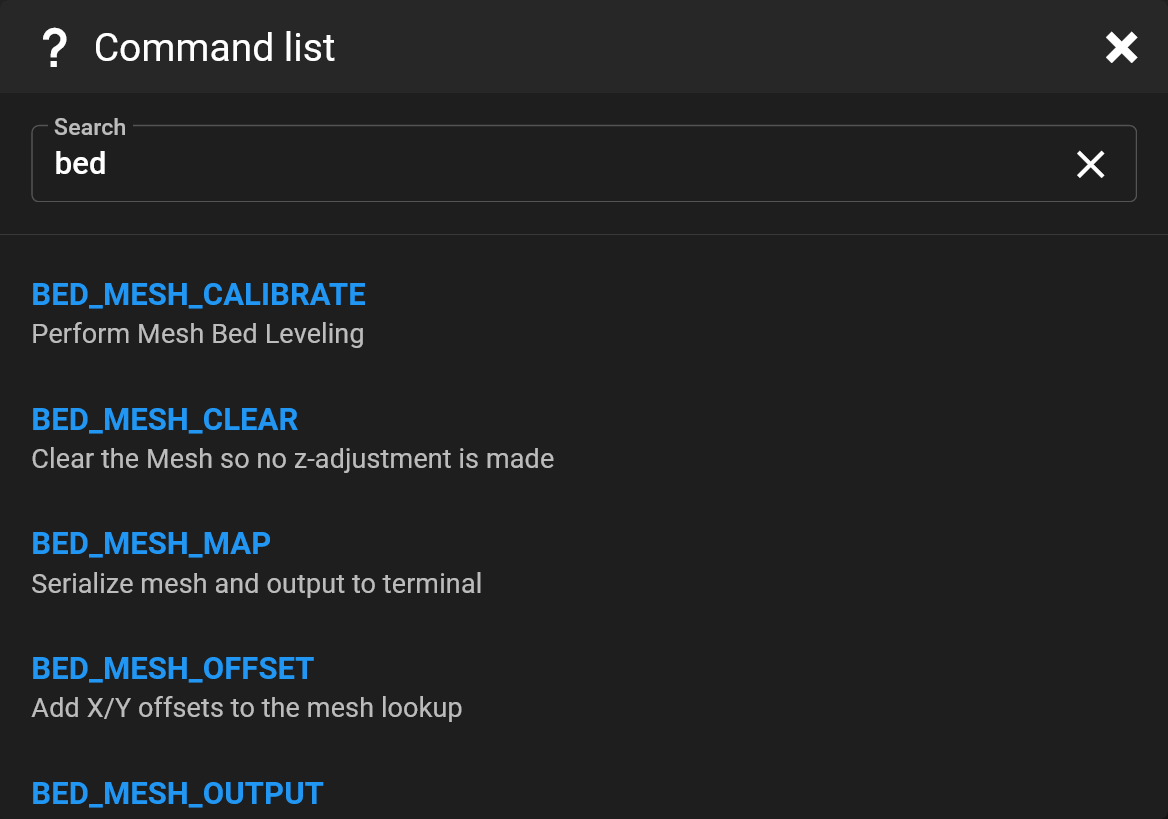
Click the ? icon in the title bar to view a list of available commands along with their descriptions.

You can filter this list using the search field.
Filter console output
Click the funnel icon to select filters and suppress specific entries from the console output.

Mainsail includes a predefined filter for temperature status messages by default. You can also create additional custom filters in the Settings.