Custom Themes
Mainsail supports advanced customization to match your preferences. You can add custom background images, logos, icons, navigation entries, and CSS styles.
Getting Started
To create your own theme, you need to set up a .theme folder in your Klipper config
directory. Alternatively, browse the Community Themes
to find ready-to-use themes from the Mainsail community.
Setup
Create the .theme Folder
Use Mainsail's built-in file manager on the Machine page to create the .theme folder.
Upload your theme files to this folder.
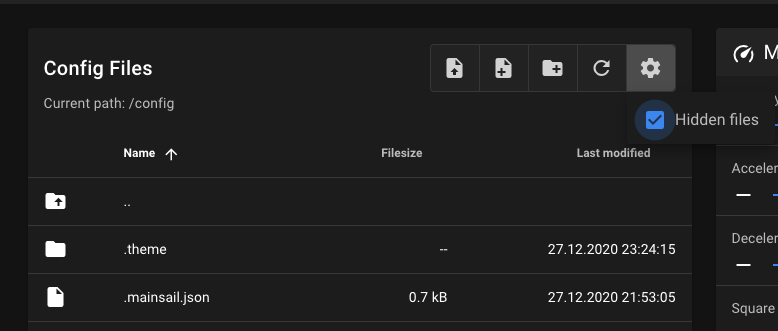
Hidden Folder
The dot in the folder name means it is hidden. Enable Show Hidden Files in the file manager's cog menu to see it.
Directory Structure
All files in the .theme folder are optional and only loaded if provided:
.theme/
├── sidebar-logo.svg|jpg|png|gif
├── sidebar-background.svg|jpg|png|gif
├── main-background.svg|jpg|png|gif
├── favicon-16x16.png
├── favicon-32x32.png
└── custom.css
Customization Options
- Backgrounds - Custom background images for sidebar and main area
- Logos and Icons - Custom sidebar logo and favicons
- Custom Navigation - Add custom entries to the sidebar
- Custom CSS - Advanced styling with CSS
Community Themes
Looking for ready-to-use themes? Check out the Community Themes created by the Mainsail community.