Custom CSS
The custom.css file allows you to customize Mainsail's appearance without rebuilding the
application. Place a file named custom.css in your .theme folder to apply custom styles.
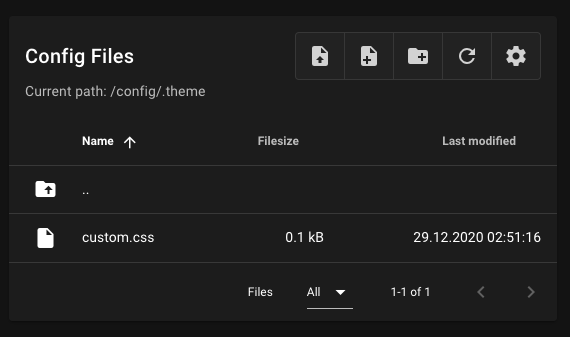
Finding Elements to Customize
Use your browser's developer tools to inspect elements and find their CSS selectors.
Learning CSS
New to CSS? Learn the basics at W3Schools CSS Tutorial.
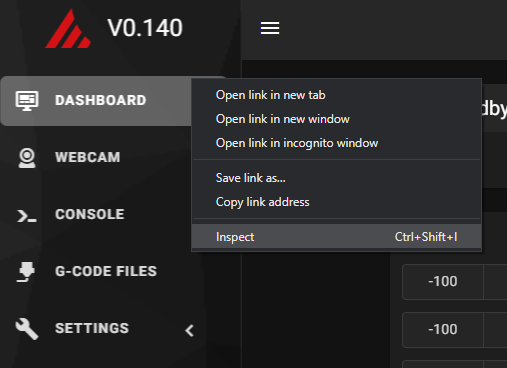
Step 1: Open Developer Tools
Open the developer tools by pressing F12 or right-clicking on the page and selecting
Inspect.
Step 2: Select an Element
Click the element selector icon (or press Ctrl+Shift+C) and click on the element you
want to customize.
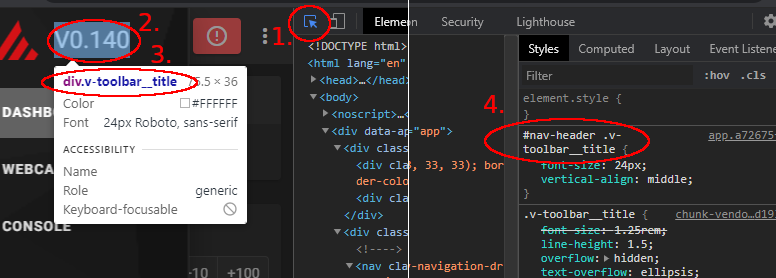
Step 3: Find the Selector
In the Elements panel, find the CSS selector for the element. Look for class names or IDs that identify the element.
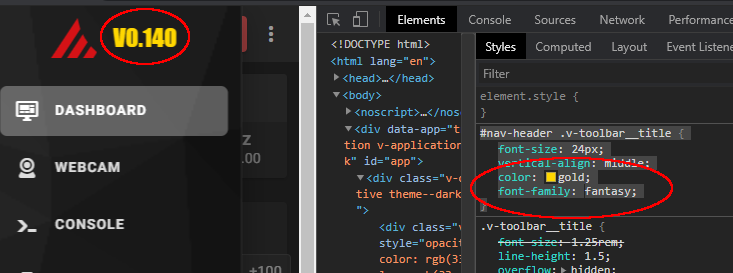
Step 4: Experiment with Styles
Use the Styles panel to experiment with different CSS properties. Changes are applied live, so you can see the result immediately.
Applying Your Styles
Once you have found the styles you want, copy the CSS rules to your custom.css file.
Example
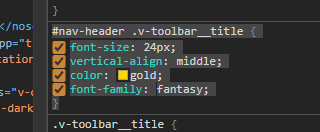
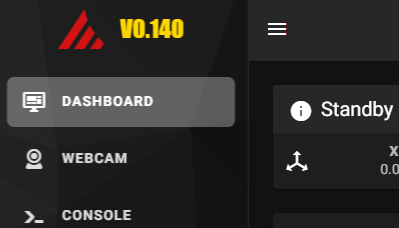
The following example changes the title color and font in the navigation header:
After saving and reloading, the changes are applied:
Browser Cache
After saving your changes, you may need to clear your browser cache. Press
Ctrl+Shift+F5 on Windows/Linux or Cmd+Shift+R on macOS.