Exclude Objects
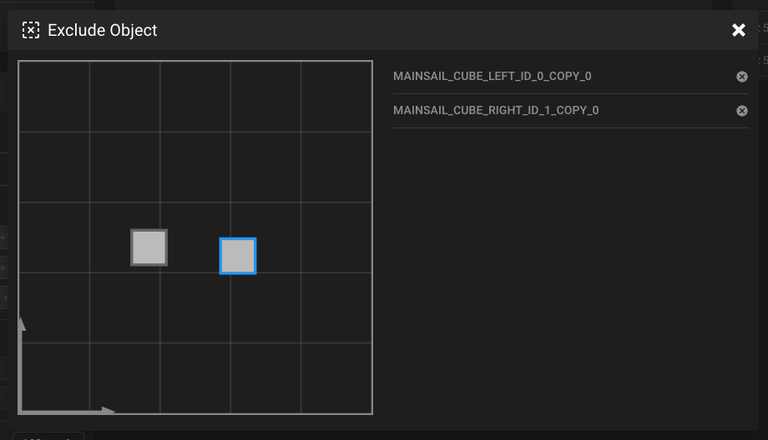
Exclude Objects allows you to skip printing individual objects during an active print job without stopping the entire print. This is useful when a part detaches from the bed or fails mid-print—you can exclude it and continue printing the remaining objects.
Version Requirements
This feature requires Klipper v0.10.0-438, Moonraker v0.7.1-445, and Mainsail v2.1.0 or newer. Please check your installed versions and update if necessary.
Warning
This feature only works with properly prepared G-code files. It will not function with older or unprocessed files.
Enable exclude_object in Klipper
Add the following section to your printer.cfg:
For more information, see the Klipper exclude_object documentation.
Slicer Configuration
Your slicer must label objects in the G-code for this feature to work. Some slicers support this natively, while others require Moonraker preprocessing.
| Slicer | Native Support | Setup |
|---|---|---|
| PrusaSlicer (v2.7.0+) | Exclude Objects in PrusaSlicer | |
| OrcaSlicer | Exclude Objects in OrcaSlicer | |
| Cura | G-Code Preprocessing | |
| IdeaMaker | Moonraker Preprocessing |
See the Slicer Configuration section for detailed setup instructions.
Moonraker Preprocessing
For slicers without native Klipper support (SuperSlicer, Cura, IdeaMaker, and others), Moonraker can automatically preprocess G-code files during upload.
Add the following to your moonraker.conf:
After adding this configuration, restart Moonraker. Newly uploaded G-code files will be automatically processed to add the required exclude object commands.
Performance on Low-Resource Devices
This process is file I/O intensive. It is not recommended for low-resource SBCs such as Raspberry Pi Zero. Consider using the preprocess_cancellation script on your computer instead.
Support Material Limitation
Cura and IdeaMaker treat support material as a single non-mesh entity. When excluding an object, its support structures will still print.
Using the Feature
Once configured, all newly uploaded G-code files will support object exclusion. A new button (dashed square with an "X") appears in the status panel during printing.
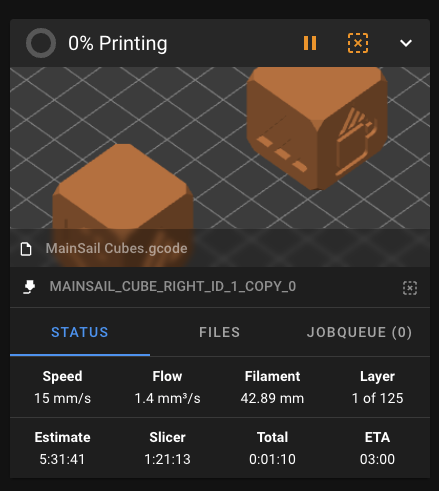
Clicking the button opens a dialog where you can select individual objects to exclude from the current print job.