Printer Power Device
Mainsail can integrate with Moonraker's power device feature to let you turn your printer on and off directly from the web interface. When Klipper is not connected because the printer is powered off, Mainsail displays a dedicated power panel instead of the usual Klipper error, allowing you to power on the printer with a single click.
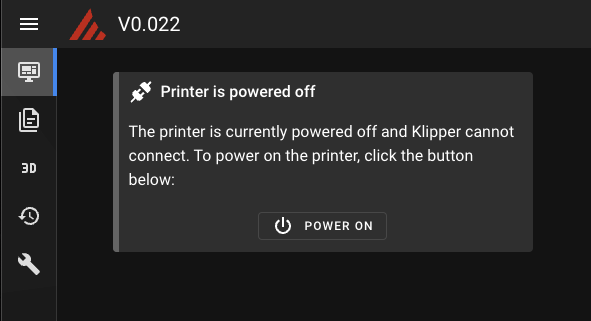
Moonraker Configuration
To enable this feature, you need to configure a power device in your moonraker.conf with the
name printer and the bound_services attribute set to klipper:
Important
The device must be named printer and include bound_services: klipper. Mainsail uses
this specific name to detect a powered-off printer and display the power panel.
Supported Power Device Types
Moonraker supports various power device types. Choose the one that matches your hardware setup:
gpio— Control a relay via a GPIO pintplink_smartplug— TP-Link smart plugstasmota— Tasmota-flashed smart plugsshelly— Shelly smart plugs and relayshomeseer— HomeSeer smart plugshomeassistant— Home Assistant entitiesloxonev1— Loxone relaysuhubctl— USB port power control- And more — see the Moonraker power documentation for a full list
Example: GPIO Relay
[power printer]
type: gpio
pin: gpio26
off_when_shutdown: True
on_when_job_queued: True
locked_while_printing: True
restart_klipper_when_powered: True
restart_delay: 1
bound_services: klipper
How It Works
- When the printer is powered off, Klipper cannot connect to the MCU
- Instead of showing a Klipper connection error, Mainsail detects the
printerpower device - A power panel is displayed with a button to turn on the printer
- After powering on, Klipper automatically starts and connects to the MCU