Dashboard Settings
Open the Interface Settings by clicking the cogs icon in the top-right corner, then navigate to Dashboard.
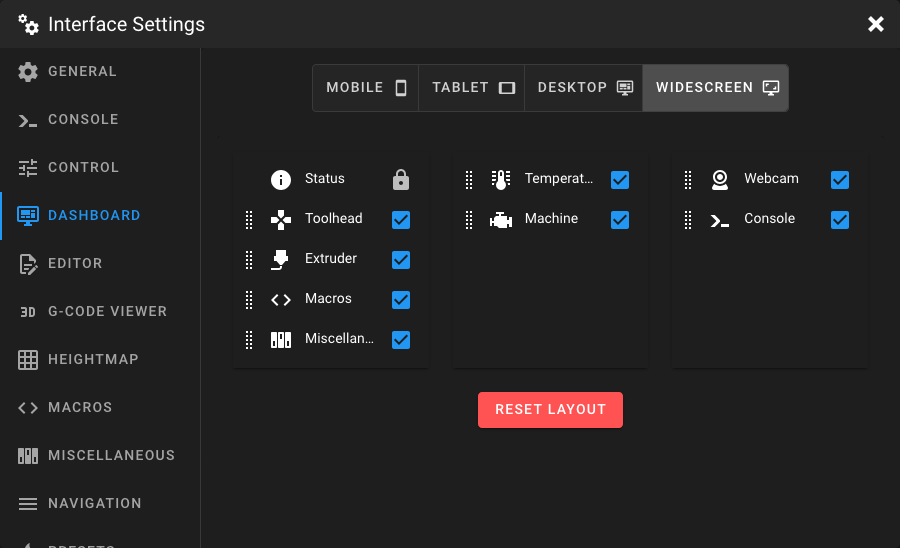
Device Classes
The Dashboard layout can be configured independently for each device class. Select the device class you want to customize using the toggle buttons at the top:
| Device Class | Columns | Description |
|---|---|---|
| Mobile | 1 | Single-column layout for smartphones. |
| Tablet | 2 | Two-column layout for tablets. |
| Desktop | 2 | Two-column layout for standard desktop screens. (the right column is a little bit bigger) |
| Widescreen | 3 | Three-column layout for wide monitors. |
Mainsail automatically selects the matching device class based on your current screen size. This allows you to hide certain panels on mobile devices that are visible on desktop, or arrange panels in a completely different order depending on the screen.
Arranging Panels
Each column displays a list of available panels. You can customize the layout by:
- Drag and drop panels to reorder them within a column or move them between columns.
- Toggle visibility of each panel using the eye icon — hidden panels remain in the list but are not shown on the Dashboard.
Note
The Status panel is always locked to the top of the first column and cannot be moved or hidden.
Reset Layout
Click the Reset Layout button at the bottom to restore the default panel arrangement for the currently selected device class. This resets both the order and visibility of all panels.
Warning
This action cannot be undone. Only the layout of the currently selected device class is reset.