Macros Settings
Open the Interface Settings by clicking the cogs icon in the top-right corner, then navigate to Macros.
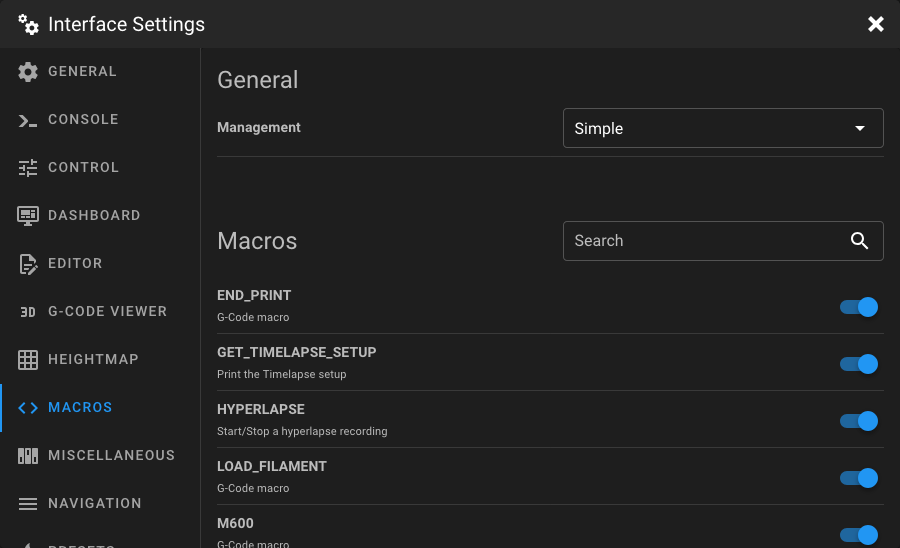
Management Mode
At the top, select the management mode that suits your needs:
| Mode | Description |
|---|---|
| Simple (default) | Toggle macro visibility. All visible macros are shown alphabetically in a single panel on the Dashboard. |
| Expert | Create custom groups, each displayed as a separate panel on the Dashboard. Full control over colors, ordering, and state-based visibility. |
Simple Mode
In Simple mode, all your Klipper G-Code macros are listed alphabetically. Each macro has a toggle switch to show or hide it on the Dashboard.
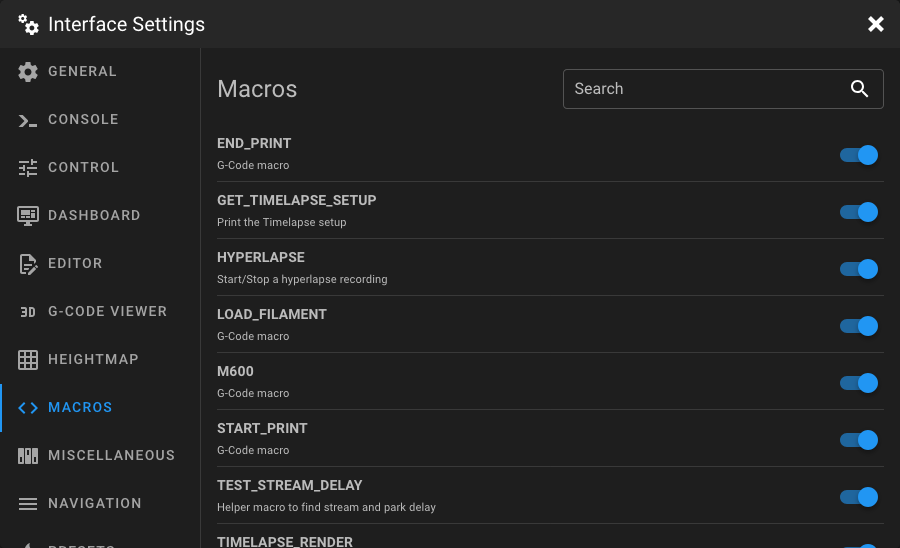
Use the Search field to quickly find macros by name or description.
Tip
Macros that start with an underscore (e.g. _MY_HELPER) are hidden by default in Klipper. These macros will not
appear in the list.
Expert Mode
Expert mode gives you full control over how macros are organized and displayed on the Dashboard. Instead of a single alphabetical list, you create groups. Each group appears as a separate panel on the Dashboard and can be positioned independently via the Dashboard settings.
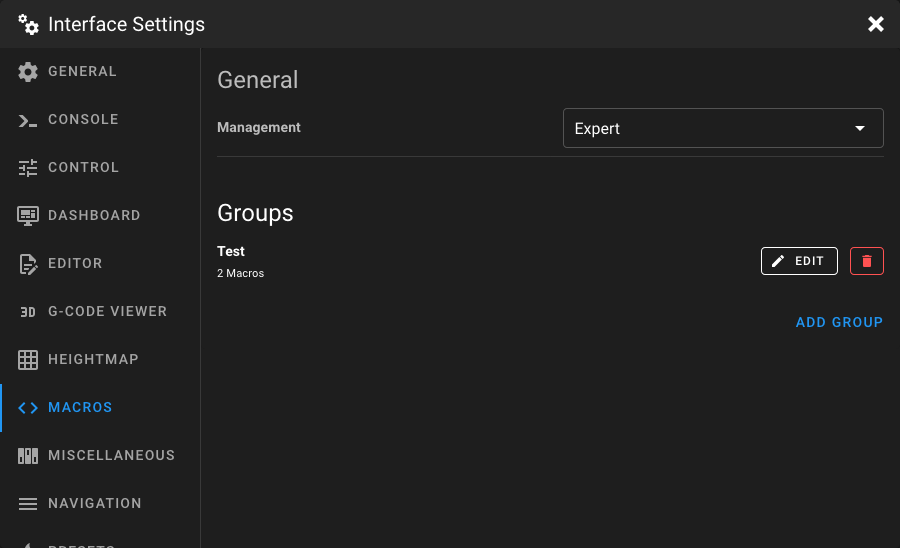
Creating a Group
Click Add Group to create a new macro group. This immediately opens the group editor.
Editing a Group
Click the Edit button next to a group to open the group editor. Here you can configure the group settings and manage which macros belong to the group.
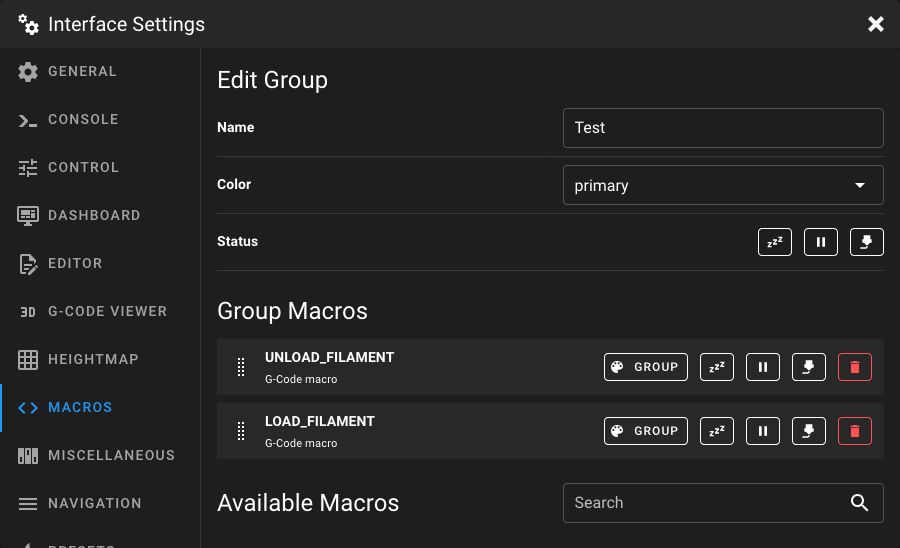
Name
Enter a unique name for the group. This name is displayed as the panel title on the Dashboard.
Color
Set the default button color for all macros in this group.
| Option | Description |
|---|---|
| primary | Primary theme color. |
| secondary | Secondary theme color. |
| success | Green. |
| warning | Orange/yellow. |
| error | Red. |
| custom | Opens a color picker to choose any color. |
Status Visibility
Control when this group panel is visible on the Dashboard based on the printer state. Toggle each state independently:
| State | Description |
|---|---|
| Standby | Show the group when the printer is idle. |
| Paused | Show the group when the printer is paused. |
| Printing | Show the group while a print is running. |
Managing Macros in a Group
The Group Macros section shows all macros currently assigned to this group.
Adding Macros
The Available Macros section below lists all macros not yet assigned to this group. Click Add to assign a macro to the group. Use the Search field to filter by name or description.
Reordering Macros
Drag and drop macros using the drag handle to change their order within the group.
Per-Macro Settings
Each macro in the group has individual settings:
| Setting | Description |
|---|---|
| Color | Cycle through the available button colors by clicking the color button. Choose group to inherit the group color, or pick a specific color (primary, secondary, success, warning, error). |
| Standby | Show or hide this macro when the printer is idle. |
| Paused | Show or hide this macro when the printer is paused. |
| Printing | Show or hide this macro while a print is running. |
Removing Macros
Click the delete button to remove a macro from the group. The macro is not deleted from Klipper, it simply removed visually from the group.
Deleting a Group
Click the delete button next to a group in the group list to remove it entirely.