Miscellaneous Settings
Open the Interface Settings by clicking the cogs icon in the top-right corner, then navigate to Miscellaneous.
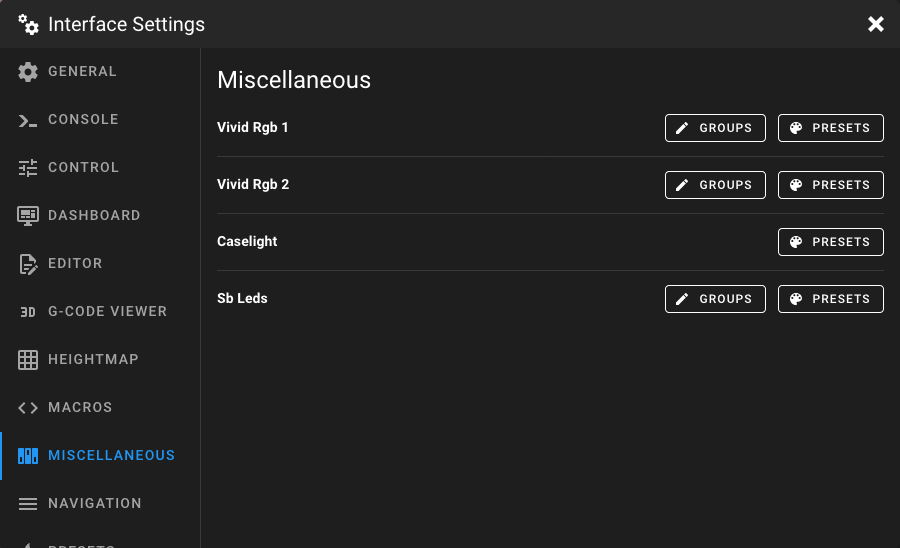
This page lists all LED and light devices from your Klipper configuration that have a color order defined (e.g.
neopixel, dotstar, or led with color pins). Each device shows its name and offers buttons to manage Groups and
Presets.
Note
If no LED devices are configured in Klipper, the page displays "No devices found".
Groups
Groups allow you to control a subset of LEDs in an addressable LED chain independently. The Groups button is only
available for devices with a chain_count greater than 1.
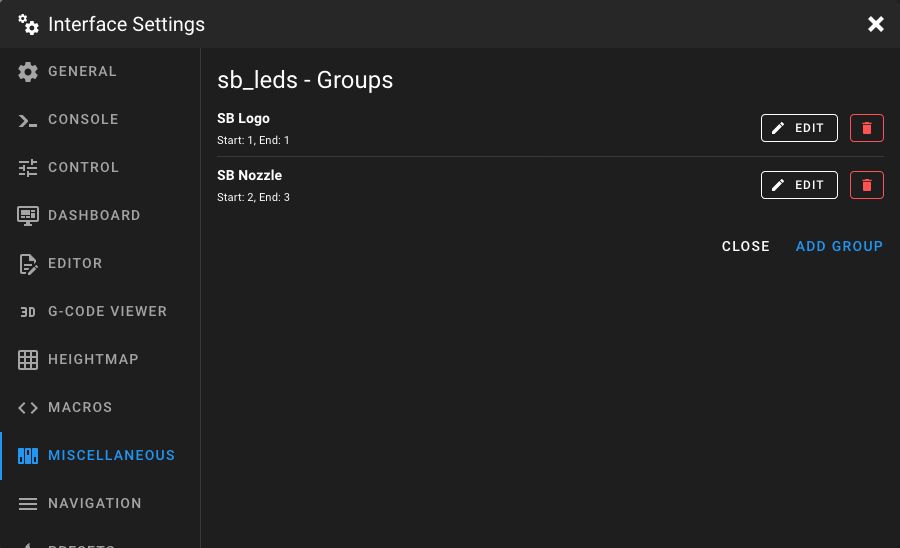
Click Groups on a device to see its group list, then click Add Group to create a new one.
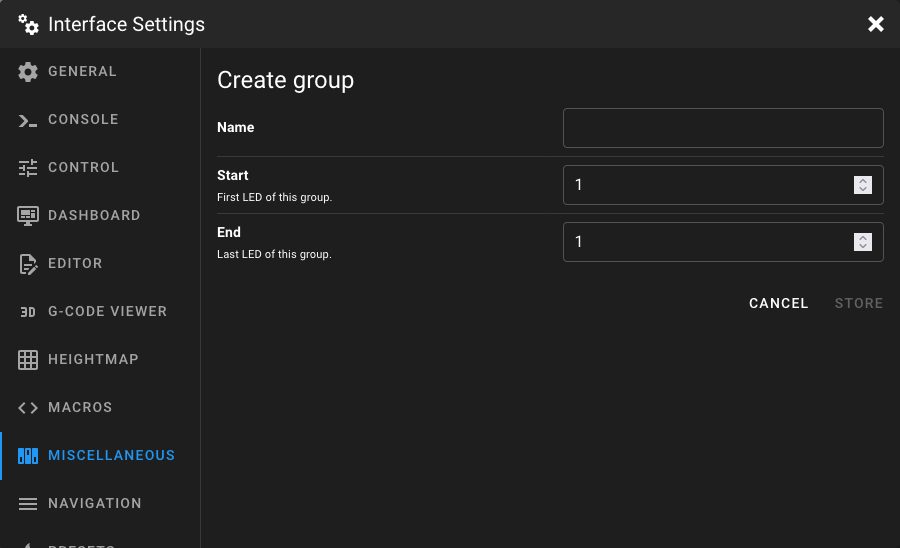
Name
Enter a unique name for the group. This name is used on the Dashboard to identify the group and control its color settings.
Start
The index of the first LED in this group. Must be greater than 0 and less than or equal to the total number of LEDs in the chain.
End
The index of the last LED in this group. Must be greater than or equal to the start value and less than or equal to the total number of LEDs in the chain.
Presets
Presets let you save color configurations for a light device and quickly apply them later from the Dashboard.
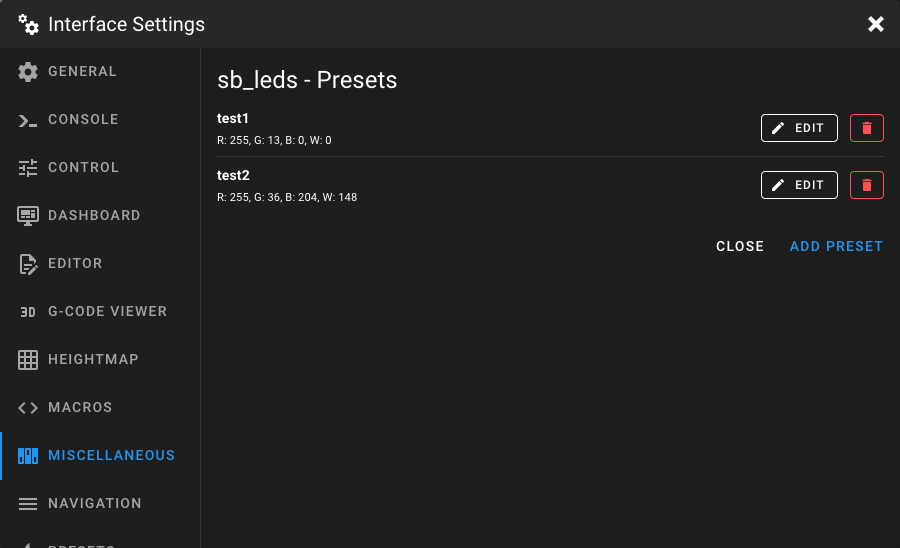
Click Presets on a device to see its preset list, then click Add Preset to create a new one.
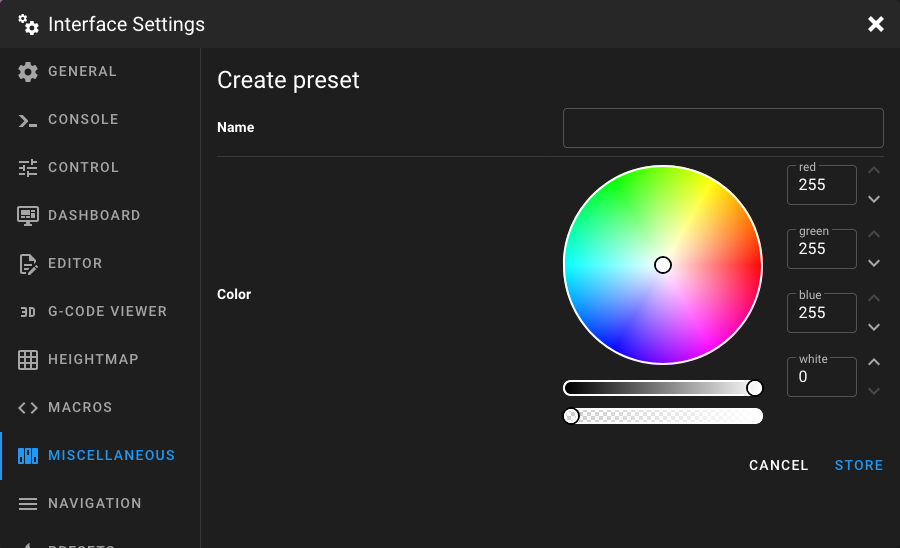
Name
Enter a unique name for the preset (e.g. "Work Light", "Night Mode", "Off").
Color
Set the color values for the preset. The available color channels depend on the device's color order:
| Channel | Range | Description |
|---|---|---|
| Red | 0 – 255 | Red channel intensity. |
| Green | 0 – 255 | Green channel intensity. |
| Blue | 0 – 255 | Blue channel intensity. |
| White | 0 – 255 | White channel intensity (only for RGBW devices). |
If the device supports full RGB, a color wheel and brightness slider are shown for easy color selection. For devices with a white channel, an additional opacity slider controls the white intensity.