Navigation Settings
Open the Interface Settings by clicking the cogs icon in the top-right corner, then navigate to Navigation.
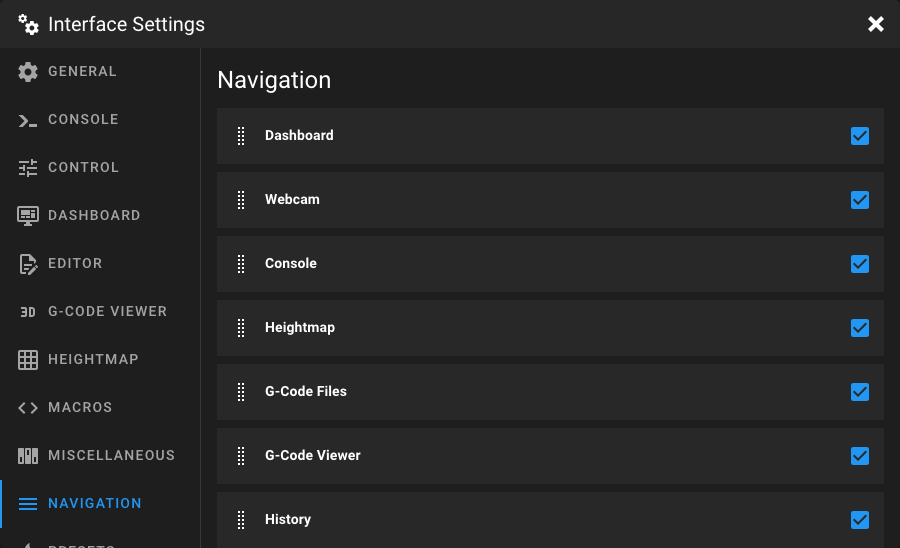
This page lets you customize the sidebar navigation of Mainsail. You can reorder entries and control which ones are visible.
Reordering Entries
Drag and drop navigation entries using the drag handle to change their order in the sidebar. The order you set here is reflected directly in the sidebar navigation.
Showing and Hiding Entries
Click the checkbox next to an entry to toggle its visibility. Hidden entries are not shown in the sidebar but remain in the settings list, so you can re-enable them at any time.
Navigation Entry Types
The navigation list can contain two types of entries:
| Type | Description |
|---|---|
| Page | Built-in Mainsail pages like Dashboard, Console, Heightmap, or G-Code Files. Which pages are available depends on your Klipper and Moonraker configuration. |
| Link | Custom external links defined via a .theme/navi.json file. These entries show their target URL as a subtitle. |
Tip
You can add custom links to the sidebar navigation by creating a navi.json file in your .theme directory. Learn
more in the Custom Themes documentation.
Note
Some navigation entries only appear when the corresponding feature is available. For example, the Webcam entry is only shown if at least one webcam is configured, and the Timelapse entry requires the Timelapse Moonraker component.