Timelapse Settings
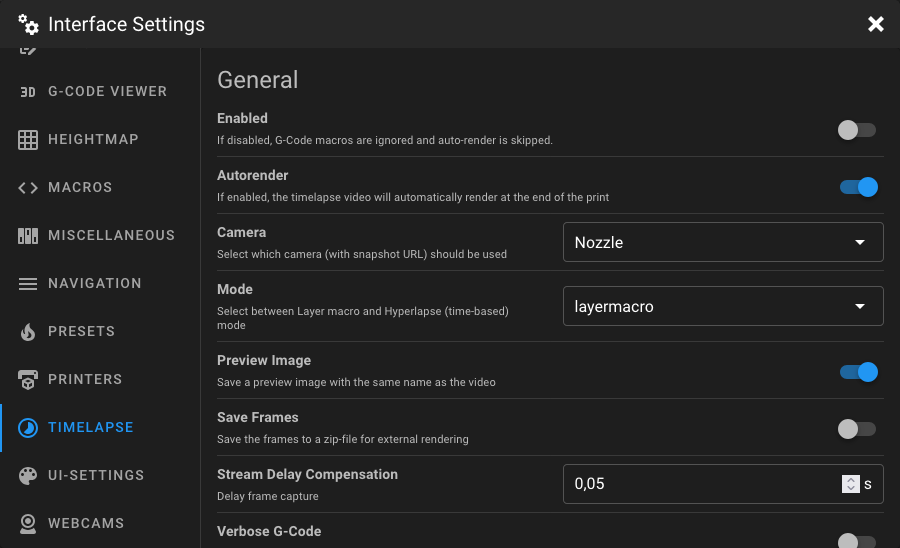
Open the Interface Settings by clicking the cogs icon in the top-right corner, then navigate to Timelapse.
Note
This settings tab is only available when the
Moonraker Timelapse component is
installed. Some settings may be disabled if they are already defined in the Moonraker configuration file
(moonraker.conf).
General
Enabled
When enabled, the timelapse G-Code macros are active and auto-render runs at the end of a print. When disabled, all timelapse macros are ignored and auto-render is skipped.
Autorender
When enabled, the timelapse video is automatically rendered at the end of the print.
Camera
Select which webcam should be used for capturing timelapse frames. Only webcams that have a snapshot URL configured in the Webcams settings are shown.
Warning
If the snapshoturl is already set in the [timelapse] section of your Moonraker configuration, this dropdown is
replaced by a warning. Remove the snapshoturl from moonraker.conf to use the camera selection in the UI.
Mode
Select the capture mode for the timelapse.
| Mode | Description |
|---|---|
| layermacro (default) | A snapshot is taken at each layer change via the TIMELAPSE_TAKE_FRAME macro. Requires the macro to be added to your slicer's layer change G-Code. |
| hyperlapse | A snapshot is taken at a fixed time interval, regardless of layer changes. |
Hyperlapse Cycle Time
The interval (in seconds) between snapshots in hyperlapse mode. Only visible when Mode is set to hyperlapse.
Preview Image
When enabled, a preview image is saved alongside the rendered video with the same filename.
Save Frames
When enabled, all captured frames are saved as a zip file for external rendering or post-processing.
Stream Delay Compensation
Delay (in seconds) before capturing a frame. This compensates for stream delay, ensuring the captured image matches the actual print state. Must be 0 or greater.
Verbose G-Code
When enabled, the timelapse G-Code macros output information to the console, which can be helpful for debugging.
Park Toolhead
Park Toolhead
When enabled, the toolhead is moved to a defined parking position before each frame is captured. This ensures consistent framing and avoids the nozzle appearing in the image.
Tip
Enabling park toolhead is recommended for the best timelapse results, as it ensures the toolhead is not visible in the captured frames.
Park Position
Select where the toolhead should park before capturing a frame.
| Position | Description |
|---|---|
| center | Parks at the center of the build plate. |
| front_left | Parks at the front-left corner. |
| front_right | Parks at the front-right corner. |
| back_left | Parks at the back-left corner. |
| back_right | Parks at the back-right corner. |
| x_only | Parks only along the X axis at a custom position. |
| y_only | Parks only along the Y axis at a custom position. |
| custom | Parks at fully custom X and Y coordinates. |
Position X
The absolute X coordinate (in mm) for the park position. Only visible when park position is set to x_only or custom.
Must be within your printer's X axis range.
Position Y
The absolute Y coordinate (in mm) for the park position. Only visible when park position is set to y_only or custom.
Must be within your printer's Y axis range.
Position Z
The relative Z movement (in mm) when parking. The toolhead moves up by this amount before parking. Only visible when
park position is set to x_only, y_only, or custom. Must be 0 or greater.
Travel Speed
The movement speed (in mm/s) used when traveling to the park position and when resuming the print. Must be 0 or greater.
FW Retract
When enabled, firmware retraction (G10/G11) is used for retracting and unretracting filament during the parking
move. When disabled, manual retraction settings are shown below.
Retract Speed
The speed (in mm/s) at which the extruder retracts filament before parking. Only visible when FW Retract is disabled. Must be greater than 0.
Retract Distance
The length of filament (in mm) that the extruder retracts before parking. Only visible when FW Retract is disabled. Must be 0 or greater.
Unretract Speed
The speed (in mm/s) at which the extruder unretracts filament after returning from the park position. Only visible when FW Retract is disabled. Must be greater than 0.
Unretract Distance
The length of filament (in mm) that the extruder unretracts after returning from the park position. Only visible when FW Retract is disabled. Must be 0 or greater.
Park Time
Additional idle time (in seconds) to wait at the park position before capturing the frame. This can help the camera autofocus or let vibrations settle. Must be 0 or greater.
Rendering Options
Variable FPS
When enabled, the framerate of the output video is automatically calculated based on the target video length. When disabled, a fixed output framerate is used instead.
Target Length
The desired duration (in seconds) of the rendered timelapse video. The framerate is automatically adjusted to match this target. Only visible when Variable FPS is enabled. Must be greater than 0.
Variable FPS Min
The minimum framerate (in frames per second) when using variable FPS. Only visible when Variable FPS is enabled. Must be greater than 0.
Variable FPS Max
The maximum framerate (in frames per second) when using variable FPS. Must be greater than the min value. Only visible when Variable FPS is enabled.
Output Framerate
The fixed framerate (in frames per second) of the rendered video. Only visible when Variable FPS is disabled. Must be greater than 0.
Duplicate Last Frame
The number of times the last captured frame is duplicated at the end of the video. This creates a brief pause at the end, showing the finished print. Must be 0 or greater.
Constant Rate Factor
Controls the video quality vs. file size tradeoff. The CRF scale ranges from 0 to 51:
| Value | Quality |
|---|---|
| 0 | Lossless |
| 17 – 18 | Visually lossless (recommended for high quality) |
| 23 (default) | Good balance of quality and file size |
| 28 | Lower quality, smaller file |
| 51 | Worst quality |
A lower value produces higher quality but larger files.
Pixel Format
Defines the pixel format of the output video. The default is yuv420p, which provides broad compatibility across video
players and devices.
Time Format Code
Defines how the timestamp in the output filename is formatted. Uses Python strftime format codes(e.g.
%Y%m%d_%H%M%S).
Extra Output Params
Additional output parameters passed directly to FFmpeg. This allows advanced users to customize the rendering pipeline.
Warning
Specifying extra output parameters will disable the automatic rotation setting applied by the timelapse plugin.