UI Settings
Open the Interface Settings by clicking the cogs icon in the top-right corner, then navigate to UI-Settings.
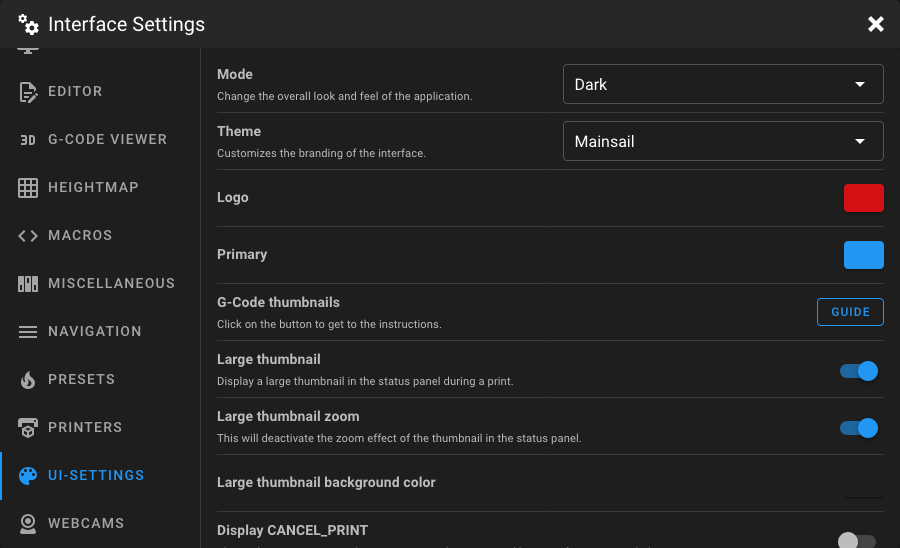
Mode
Change the overall look and feel of the application.
| Option | Description |
|---|---|
| Dark (default) | Dark background with light text. |
| Light | Light background with dark text. |
Theme
Customize the branding of the interface. Selecting a theme may update the default logo and primary colors. There are a couple of built-in themes available. To find more information about the available themes, check the Themes documentation.
Logo Color
Change the color of the Mainsail logo (or the current logo from your theme) displayed in the top-left corner and in the browser tab. Use the color picker to select a custom color. Click the reset button to restore the theme default color.
Primary Color
Change the color of all primary UI elements such as buttons, links, and other interactive elements. Use the color picker to select a custom color. Click the reset button to restore the theme default color.
G-Code Thumbnails
A link to the Thumbnails documentation, which explains how to configure your slicer to generate G-Code thumbnails.
Large Thumbnail
When enabled, a large thumbnail image is displayed in the status panel during a print. When disabled, only a small icon is shown. (If a thumbnail is available for the current print job)
Large Thumbnail Zoom
When enabled, the large thumbnail has a zoom effect in the status panel. Disable this to show the complete thumbnail without zoom effect. This option is only visible when Large Thumbnail is enabled.
Large Thumbnail Background Color
Set the background color behind the large thumbnail using the color picker. This option is only visible when Large Thumbnail is enabled. Click the reset button to restore the default.
Display CANCEL_PRINT
When enabled, the CANCEL_PRINT button is shown permanently during a print and no second-layer confirmation is needed.
When disabled, you need to confirm cancellation through an additional step to PAUSE the print first.
Show Progress as Favicon
When enabled, the Mainsail logo favicon in the browser tab is replaced with a progress circle during printing.
Lock Sliders on Touchscreen Devices
When enabled, sliders on touchscreen devices need to be unlocked before changes are allowed. This prevents accidental adjustments when scrolling on touchscreen devices.
Slider Lock Delay
Set the delay (in seconds) after which sliders automatically lock again. If set to 0 or left blank, sliders only lock
on page change or reload. This option is only visible when Lock Sliders on Touchscreen Devices is enabled.
Require Confirm on Emergency Stop
When enabled, a confirmation dialog is shown when you click the Emergency Stop button, preventing accidental activation.
Require Confirm on Cooldown
When enabled, a confirmation dialog is shown before executing the cooldown preset, preventing accidental temperature changes during or after a print.
Require Confirm on Device Power Changes
When enabled, a confirmation dialog is shown before toggling Moonraker power devices on or off.
Require Confirm on Cancel Job
When enabled, a confirmation dialog is shown before cancelling a print job.
Navigation Style
Change the appearance of the sidebar navigation.
| Option | Description |
|---|---|
| Icons + Text (default) | Displays an icon and the name of each navigation entry. |
| Icons only | Displays only icons, taking up less space in the sidebar. |
Navigation Default State
Control whether the sidebar navigation is open or closed when Mainsail loads.
| Option | Description |
|---|---|
| always open | The sidebar is always expanded on page load. |
| always closed | The sidebar is always collapsed on page load. |
| last state (default) | Restores the sidebar state from the previous session. |
Hide Upload and Print Button
When enabled, the Upload and Print button in the top bar is hidden. This can be useful to prevent accidental prints when you only want to upload files.
Printer Power Device
Select which Moonraker power device should be used to power on the printer. The default (Auto) automatically selects
a device named printer if one exists.
Hide SAVE_CONFIG Button for bed_mesh Changes
When enabled, the SAVE_CONFIG button is hidden if only bed_mesh changes are pending to be saved in Klipper. This is
useful if you don't want to permanently save bed mesh data after each probe.
Disable Fan Animation
When enabled, the spinning fan icon animation is disabled. This can reduce browser load, especially on lower-powered clients.
Manual Probe Helper Dialog
When enabled, a helper dialog is displayed when running PROBE_CALIBRATE or Z_ENDSTOP_CALIBRATE, guiding you through
the manual probe process.
Bed Screws Dialog
When enabled, a helper dialog is displayed when running BED_SCREWS_ADJUST, showing which screw to adjust and by how
much.
Screws Tilt Adjust Dialog
When enabled, a helper dialog is displayed when running SCREWS_TILT_CALCULATE, showing the calculated adjustments for
each screw.
Height Temperature Chart
Set the height (in pixels) of the temperature chart on the Dashboard. The value can be set between 100 px and 500 px using the slider.
Hide Update Warnings
When enabled, all update warnings in the update manager are hidden. Enable this if you intentionally run older versions and don't want to see update notifications.
Dashboard Files Limit
Set the maximum number of files displayed in the Dashboard status panel. Use the slider to select a value between 0
and 10. Setting this to 0 hides the files tab entirely.
Dashboard Files Filter
Filter the files shown in the Dashboard status panel by their last print status:
| Option | Description |
|---|---|
| New | Files that have not been printed yet. |
| Failed | Files whose last print failed. |
| Completed | Files whose last print completed successfully. |
You can select multiple filters. If no filter is selected, all files are shown.
Dashboard History Limit
Set the maximum number of print jobs displayed in the Dashboard status panel. Use the slider to select a value between
0 and 10. Setting this to 0 hides the history tab entirely.
Hide Other Instances
When enabled, other instances of Klipper and Moonraker are hidden in the service menu. This is useful in multi-instance setups where you only want to see the current instance.