Cura
Configure UltiMaker Cura for optimal use with Mainsail and Klipper.
Thumbnails
To display thumbnail previews in Mainsail, you need to add a post-processing script in Cura.
Moonraker Connection Plugin
If you're using the Moonraker Connection plugin (see Direct Upload), thumbnail generation is already included and you can skip this section.
Setup
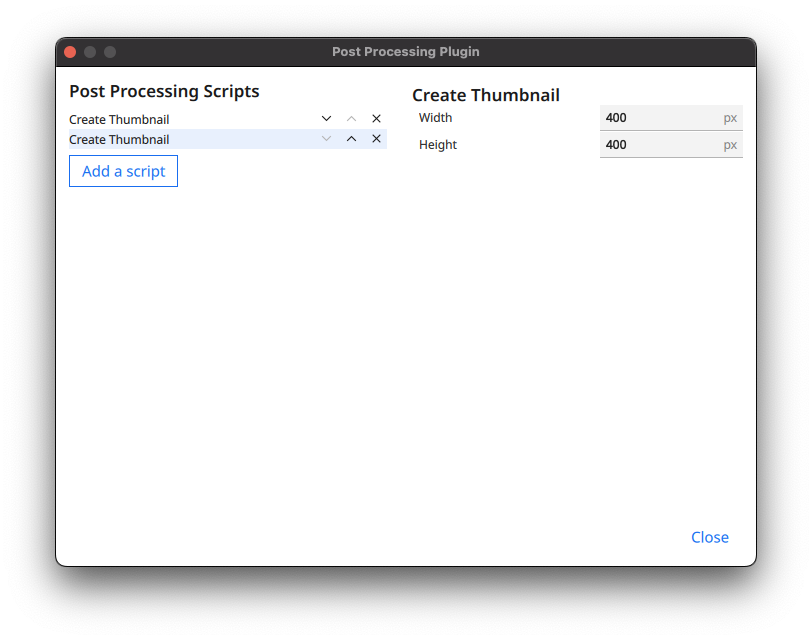
- Open Extensions > Post Processing > Modify G-Code
- Click Add a script and select Create Thumbnail
- Set the size to
32x32 - Add the script again with size
400x400
Square Thumbnails
The thumbnail size must be square (equal width and height). Non-square resolutions will cause Cura to squeeze the thumbnail.
Direct Upload
Upload G-code files directly from Cura to your printer using the Moonraker Connection plugin.
Installation
- Open Cura and click Marketplace in the top-right
- Search for Moonraker Connection and install it
- Restart Cura
Configuration
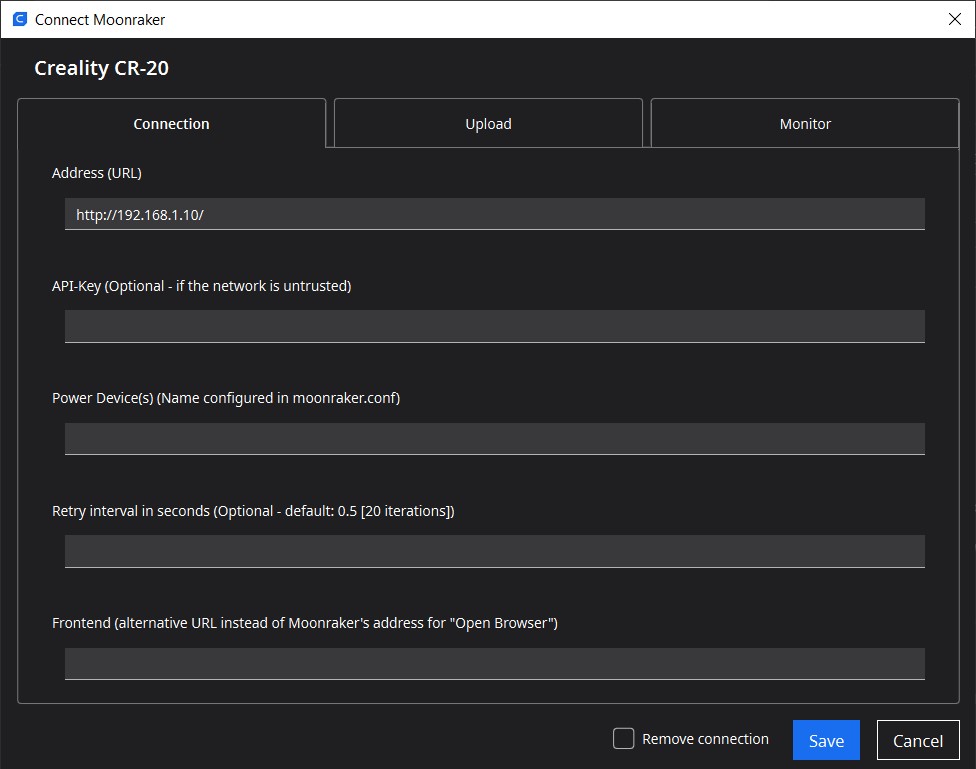
- Navigate to Settings > Printer > Manage Printers
- Select your printer profile and click Connect Moonraker
- Configure the connection settings:
| Setting | Value |
|---|---|
| Address (URL) | Your Mainsail address, e.g., http://mainsail.local/ |
| Camera URL (optional) | Your webcam stream, e.g., http://mainsail.local/webcam/stream |
G-Code Preprocessing
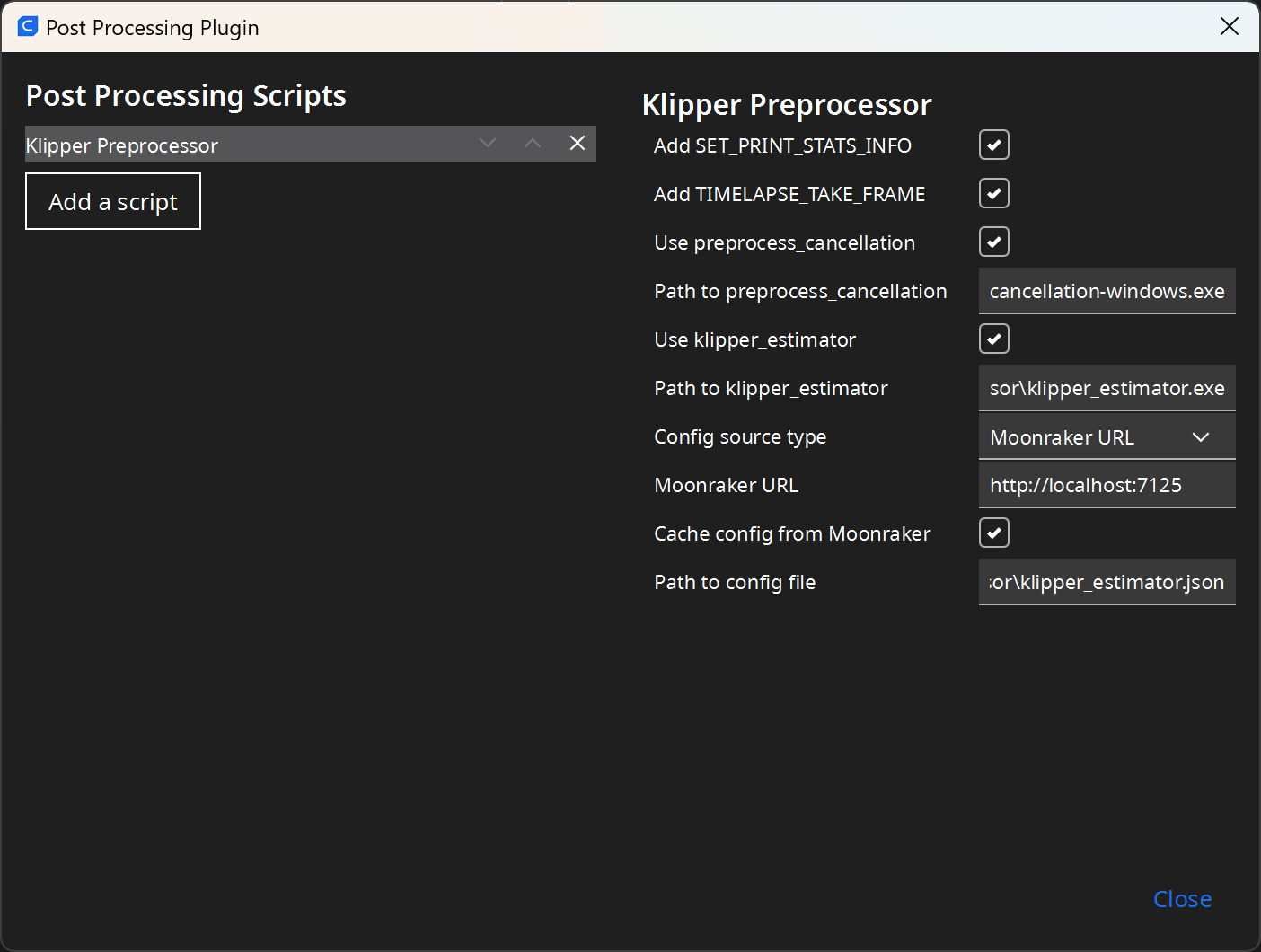
For the best experience with Klipper, additional G-code modifications are recommended. Pedro Lamas has developed an excellent post-processing script that handles all necessary adjustments automatically.
Features
The Klipper Preprocessor script adds support for:
- Layer information - Adds
SET_PRINT_STATS_INFOso Klipper knows the current and total layer count in real-time - Timelapse support - Adds
TIMELAPSE_TAKE_FRAMEfor use with moonraker-timelapse - Object cancellation - Enables canceling individual objects during a print (Exclude Objects)
- Time estimation - Improves print time accuracy using klipper_estimator
Installation
Follow the installation guide in the Klipper Preprocessor repository.