OrcaSlicer
Configure OrcaSlicer for optimal use with Mainsail and Klipper.
Thumbnails
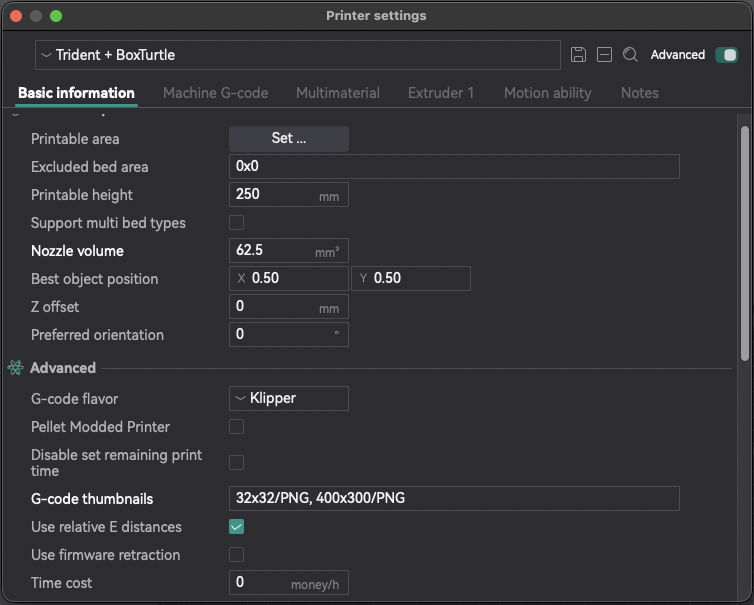
To display thumbnail previews in Mainsail, you need to configure the G-code flavor and thumbnail settings in OrcaSlicer.
- Open the Printer Settings (the button behind the printer dropdown in the top of the sidebar)
- Navigate to the Basic information section
- Set G-code flavor to
Klipper - Set G-code thumbnails to
32x32/PNG, 400x300/PNG
Layer Information
To have Slicer based layer information displayed in Mainsail, you have to add some lines of G-Code to the Slicer Printer Settings. Open the Printer Settings (the button behind the printer dropdown in the top of the sidebar) and then Machine G-code and set these lines of G-Code:
-
Start G-Code (before your start G-Code):
-
End G-Code (at the last line):
-
After layer change G-Code:
Exclude Objects
OrcaSlicer has native support for Klipper's Exclude Objects feature and adds the necessary G-Codes to the generated
G-code file. You just need to set the G-Code flavor to Klipper.
- Open the Printer Settings (the button behind the printer dropdown in the top of the sidebar)
- Set G-code flavor to
Klipper
Upload to Printer
Upload G-code files directly from OrcaSlicer to your printer using the built-in upload to Moonraker.
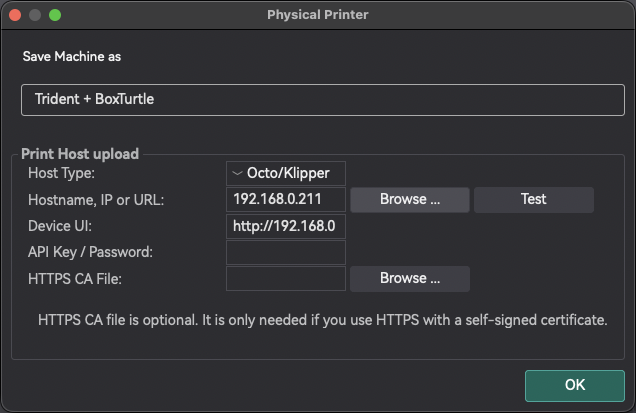
- Open the Physical Printer dialog (the button behind the printer dropdown in the top of the sidebar)
- Set Host Type to
Octo/Klipper - Enter the Hostename, IP or URL of your Moonraker instance, e.g.,
mainsail.local - (Optional) Enter the Device UI URL of your Mainsail instance, e.g.,
http://mainsail.local - Click on
Testto verify the connection
After configuration, you can upload G-code directly to your printer using the Print button in the top-right corner of the OrcaSlicer interface.